

Blog
Back to School: Creative SVG Cut Files for Cricut & Silhouette

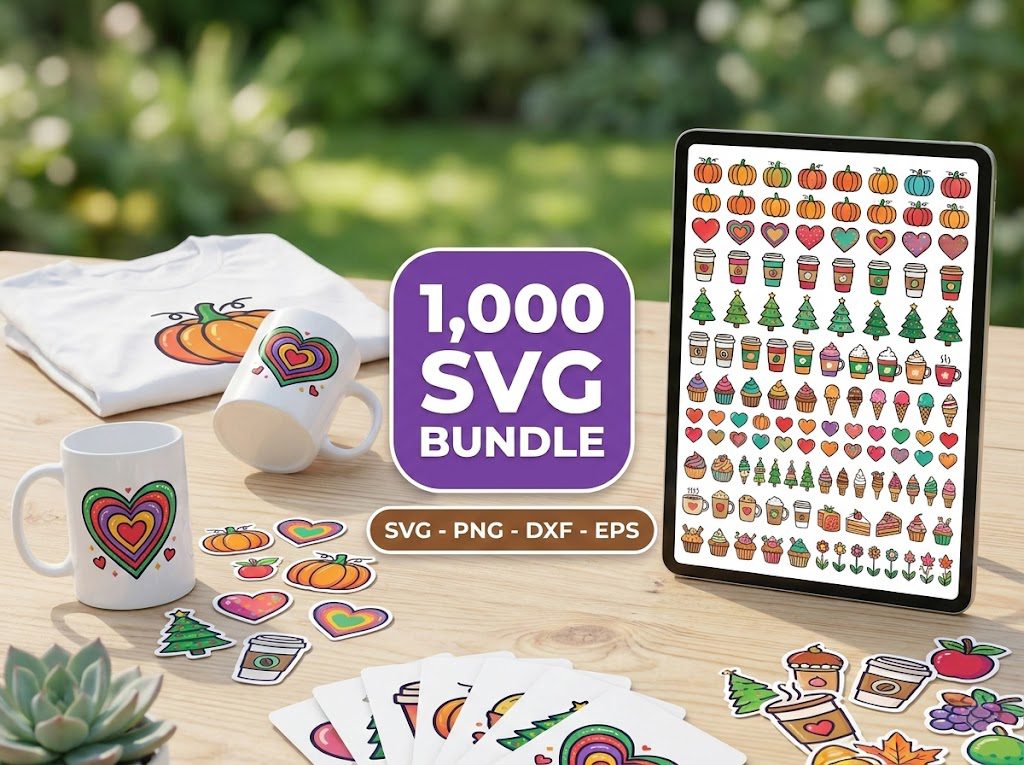
As the new school year approaches, many parents and teachers are looking for creative ways to enhance their classrooms or home learning environments. I remember feeling overwhelmed at the thought of organizing everything for back to school. It was often a challenge to find the right materials, especially when it came to crafting projects that required SVG cut files. But with the right resources, I discovered how to make engaging, personalized items that excited both kids and teachers alike!
SVG cut files are a fantastic resource for anyone looking to craft unique back-to-school items. Whether you’re making labels, decorations, or custom gifts, SVG files offer endless possibilities. Let’s dive into how to make the most of these files for your back-to-school crafting needs!
Step 1: Choose the Right SVG Cut Files
Before you start crafting, it’s essential to select the right SVG cut files that fit your project. Consider what you need, whether it’s cute designs for lunch boxes, labels for school supplies, or fun decorations for your classroom.
- Browse through our extensive collection of SVG files for Cricut to find designs that inspire you.
- Look for files that come with commercial use licenses if you plan to sell your creations.
Step 2: Prepare Your Cutting Machine
Once you’ve selected your SVG cut files, it’s time to prepare your cutting machine. Ensure your Cricut or Silhouette is set up correctly and ready to go.
- Check that your cutting blade is sharp and clean for precise cuts.
- Adjust the settings on your machine to match the material you are using (e.g., cardstock, vinyl, etc.).
Step 3: Upload Your SVG Cut Files
Now it’s time to upload your SVG files to your machine’s design software. Here’s how to do it for both Cricut Design Space and Silhouette Studio.
- For Cricut: Open Design Space, click on “Upload,” and select your SVG file. Make sure to choose the right options for your project.
- For Silhouette: Open Silhouette Studio, click on “File” and then “Import,” or simply drag and drop your SVG file into the canvas.
Step 4: Cutting Your Design
With your SVG files uploaded, you’re ready to cut! Follow these steps to ensure a smooth cutting process.
- Load your material into the cutting machine, ensuring it’s aligned correctly.
- Press the “Cut” button and monitor the progress. If you’re using intricate designs, be prepared to help your machine along.
Using SVG cut files can be a game-changer for back-to-school projects. They allow for creativity and personalization, making each item special. As you craft, remember to take advantage of the vast resources available. With over 27,000 designs trusted by thousands of crafters, you’re bound to find the perfect SVG cut files for your projects!
🎁 Get FREE Designs Today!
Perfect for testing with your Cricut or Silhouette machine before committing to a paid bundle.
Now that you have your SVG cut files ready, let’s look at some common mistakes to avoid and tips to enhance your crafting experience.
As we prepare for back-to-school crafting, it’s essential to know how to effectively use your SVG cut files. Here are some more details on how to work with these files across different machines.
How to Cut SVGs with Cricut
Cutting SVGs with a Cricut machine is straightforward. Just follow these steps:
- Load your SVG file into Cricut Design Space.
- Adjust settings based on the material you’re using.
- Load your mat and press “Go” when ready.
- Once the cutting is complete, carefully remove your material.
How to Upload SVGs to Cricut Design Space
To upload SVG files to Cricut Design Space:
- Open Cricut Design Space and click “Upload.”
- Select your SVG file and follow the prompts to add it to your canvas.
- Save your design, then proceed to cut.
How to Cut SVGs with Silhouette
Using SVGs with a Silhouette machine is also user-friendly. Here’s how:
- Import the SVG file into Silhouette Studio.
- Set the cut settings based on your material.
- Load the material into the machine and hit “Cut.”
How to Upload SVGs to Silhouette Studio
To upload SVG files in Silhouette Studio:
- Open Silhouette Studio and click “File.”
- Select “Import” and choose your SVG file from your computer.
- Position your design on the canvas, then proceed to cut.
How to Download Free SVG Files
Finding free SVG files can help you experiment without spending money. Here’s how:
- Visit sites like BundleArtSVG for a variety of free downloads.
- Ensure you check the licensing to understand how you can use the files.
How to Organize Your SVG Files
Organizing your SVG files can save you time and frustration. Here are some tips:
- Create folders based on themes (e.g., holidays, school, etc.).
- Use descriptive file names for easy identification.
- Back up your files regularly to prevent loss.
Best Sites for Free SVG Cut Files
Here are some of the best sites to find free SVG cut files:
- BundleArtSVG Freebies – Regularly updated with new designs.
- Creative Fabrica – Offers a selection of free SVGs and crafting resources.
- Free SVG – A dedicated site for free SVG files across various categories.
Tips for Using SVG Cut Files
Maximize your crafting potential with these tips:
- Always test cut your designs on scrap material first.
- Adjust blade depth according to the material thickness.
- Keep your software updated for the best performance.
500,000+ Ultimate SVG Mega Bundle
Only $29.99
4.96/5 stars from 26 reviews — the most complete SVG library for Cricut crafters. Just $0.000059 per file.
4000+ Magical Mega SVG Bundle
Only $7.99
5.00/5 stars — 4,000+ designs for just $0.002 per file.
Frequently Asked Questions
What are SVG cut files?
SVG cut files are vector graphics that can be used with cutting machines like Cricut and Silhouette. They allow for precise cuts in various materials.
How do I use SVG cut files?
To use SVG cut files, upload them to your cutting machine’s design software, adjust settings for your material, and then cut the design.
Can I use SVG cut files for commercial projects?
Yes, many SVG files come with a commercial use license. Always check the licensing terms before using them for commercial purposes.
Where can I find free SVG cut files?
You can find free SVG cut files on various websites, including BundleArtSVG, which offers a selection of free downloads.
What should I do if my SVG file won’t upload?
If your SVG file won’t upload, it may be corrupted or not compatible with your software. Try opening it in a vector editing program and saving it again.