

Blog
Fall Festivities: Top 10 SVG Cut Files for Cricut & Silhouette

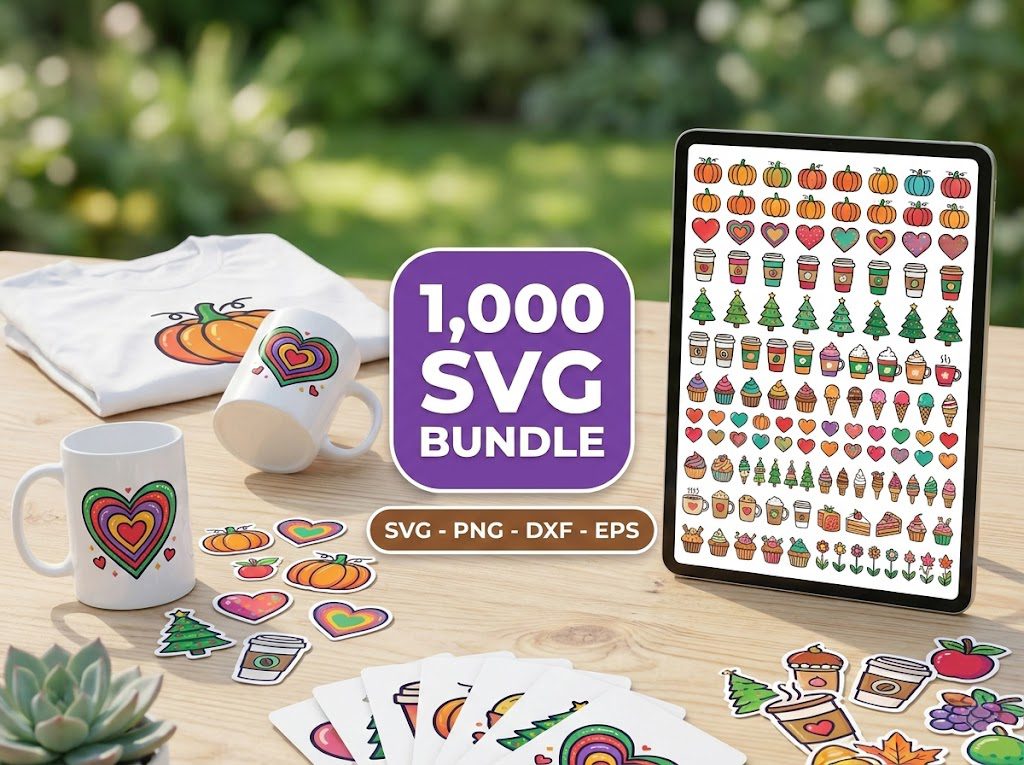
Have you ever found yourself excitedly scrolling through designs, only to be overwhelmed when trying to figure out how to use SVG cut files for Cricut and Silhouette? You’re not alone! Many crafters face the same challenge, especially when the fall season rolls around, bringing a plethora of Crafts“>festive projects to create.
In this article, we will guide you through the best SVG cut files for Cricut and Silhouette that can elevate your fall festivities. With a little guidance, you’ll be creating stunning projects in no time!
Step 1: Download the SVG File
Begin by choosing your desired SVG cut file from our extensive library. Make sure to look for designs that resonate with your fall theme, such as pumpkins, autumn leaves, or festive quotes.
- Visit our SVG files for Cricut selection.
- Find the perfect design and click on it to view more details.
Step 2: Open Cricut Design Space
Once you’ve downloaded your file, open Cricut Design Space. This is where you’ll upload your SVG cut file and prepare it for cutting.
- Log in to your Cricut account.
- Select “New Project” to start a fresh canvas.
Step 3: Click Upload then Upload Image
Now, it’s time to upload your SVG file. Click on the “Upload” button on the left side menu and then choose “Upload Image”.
- Select the file you downloaded.
- Ensure it’s set to “SVG” in the file type dropdown before uploading.
Step 4: Adjust Settings and Cut
After uploading, you can adjust the size and position of your design on the canvas. Once you’re satisfied, click “Make It” to cut your design.
- Choose your material settings based on what you are cutting (vinyl, cardstock, etc.).
- Follow the prompts to load your material and start cutting!
File Licensing and Commercial-Use Restrictions
One crucial aspect of using SVG cut files for Cricut and Silhouette is understanding the licensing. Most files come with a commercial-use license, allowing you to create products for sale. However, always check individual file descriptions to ensure compliance.
Here are some key points to remember:
- Commercial use is often allowed, but reselling the digital file is not.
- Personal use licenses typically restrict sales but allow for personal projects.
Troubleshooting Common SVG Issues
SVG files can sometimes present challenges such as missing layers or import errors. Here’s how to troubleshoot common issues:
- Ensure the SVG file is correctly unzipped. If it’s in a zip file, extract it before uploading.
- If layers are missing, check the layers panel in Cricut Design Space to see if any are hidden.
- For corrupted files, try re-downloading the SVG from the original source.
SVG Compatibility Across Machines
SVG cut files for Cricut and Silhouette are designed to be versatile. However, compatibility can vary slightly between machines.
Here’s a quick comparison:
- Cricut: Supports SVG, PNG, and JPG files. Ideal for intricate designs.
- Silhouette: Also supports SVG, but be mindful of the software version you are using.
Customer Testimonials
Don’t just take our word for it! Here’s what some of our happy crafters have to say:
- “I love the variety of SVG cut files for Cricut and Silhouette available at BundleArtSVG! I’ve created so many beautiful projects!” – Sarah W.
- “The quality of the files is fantastic, and the instructions are easy to follow.” – Emily R.
Browse the Free Cut Files
Looking to try before you buy? We’ve got you covered! Check out our selection of free SVG downloads to test with your Cricut or Silhouette machine.
🎁 Get FREE Designs Today!
Perfect for testing with your Cricut or Silhouette machine before committing to a paid bundle.
500,000+ Ultimate SVG Mega Bundle
Only $29.99
4.96/5 stars from 26 reviews — the most complete SVG library for Cricut crafters. Just $0.000059 per file.
4000+ Magical Mega SVG Bundle
Only $7.99
5.00/5 stars — 4,000+ designs for just $0.002 per file.
Frequently Asked Questions
What are SVG cut files?
SVG cut files are vector graphics specifically designed for cutting machines like Cricut and Silhouette. They can be resized without losing quality.
Are your SVG files compatible with Silhouette?
Yes! All SVG files for Cricut and Silhouette are designed to work seamlessly across both platforms.
How do I download and use your SVG files?
Simply select your desired design, purchase it, and then download the file. Follow the upload steps outlined above to use it in your cutting machine.
Can I sell items made with your SVG files?
Yes, most of our designs come with a commercial use license that allows you to sell items made with them. Just don’t resell the digital files themselves.
What if I encounter an issue with my SVG file?
If you experience issues, ensure the file is unzipped. If problems persist, reach out to our support team for assistance.