

Blog
Top 10 Back-to-School SVG Cut Files for Cricut & Silhouette

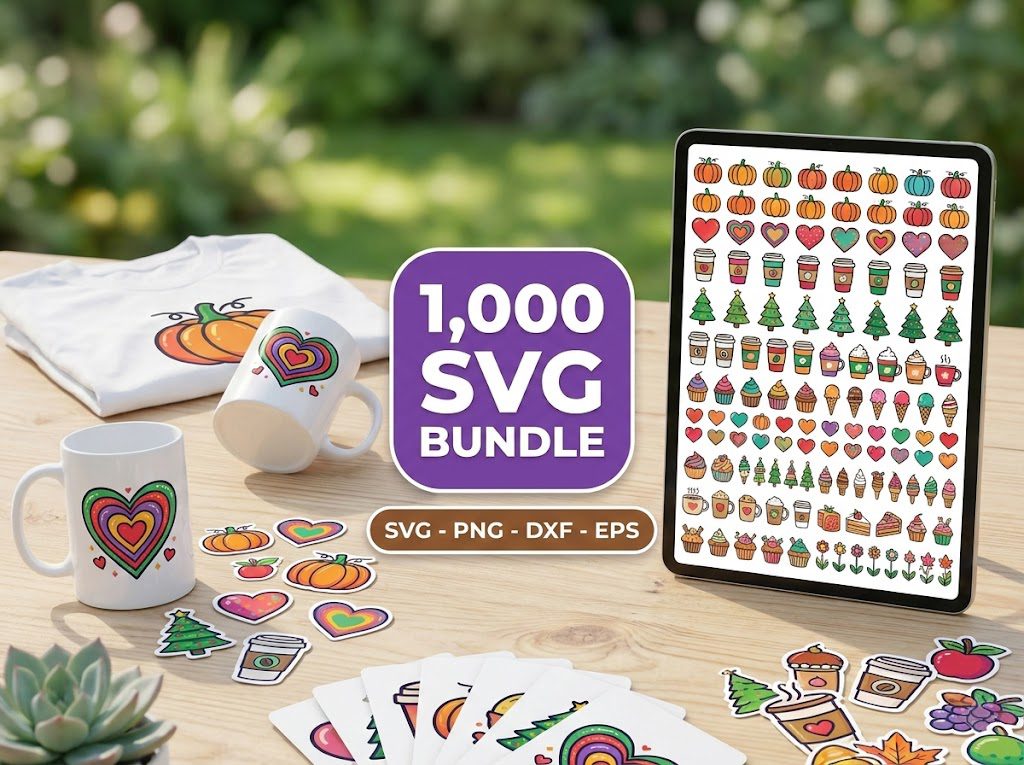
As the back-to-school season approaches, many of us feel the pressure to create something special for our kids and classrooms. I remember scrambling last year, trying to find the right designs to make personalized items for my daughter’s first day of school. Between the excitement and the chaos, I realized I needed a reliable source for Back-to-School SVG cut files that could help me craft unique items without breaking the bank.
These cut files are perfect for Cricut and Silhouette machines, allowing you to create everything from T-shirts to classroom decorations. In this article, we’ll explore ten fantastic Back-to-School SVG cut files that you can use to make this year’s transition smooth and fun!
Free Back to School SVG Cut Files
If you’re looking to try out some designs before making a purchase, we’ve got you covered! BundleArtSVG offers a range of free SVG downloads that are perfect for testing your Cricut or Silhouette machine. Here are a few ideas:
- Back-to-school banners
- Personalized name tags
- Teacher appreciation designs
These free designs can help you get started without any upfront costs. Remember, new designs are added weekly, so check back often!
Step 1: Choose Your Design
Start by browsing through the free Back-to-School SVG cut files to find a design that resonates with you. Consider the age group and preferences of the students or your own kids.
- Look for designs that can be used for multiple projects.
- Check compatibility with Cricut or Silhouette before downloading.
Prepare to be Schooled
Once you have your design, it’s time to prepare your materials and tools. Here are some essential items you’ll need:
- Vinyl or cardstock, depending on your project.
- Transfer tape for vinyl designs.
- Weeding tools for removing excess material.
Before starting, ensure you have the right settings on your machine. For vinyl, use the setting for “Vinyl,” and for cardstock, select “Cardstock.” Each machine may differ slightly, so refer to your user manual for specifics.
Step 2: Upload Your Design
Upload your chosen Back-to-School SVG cut file into your design software. Here are a couple of tips:
- Ensure the design is properly scaled for your project.
- Use the “Attach” feature to keep elements together if needed.
Back to Cool
Back-to-school doesn’t have to mean boring! Let’s make it cool with some creative projects. Here are some fun ideas:
- Customized T-shirts: Use SVG cut files to create unique designs for your kids’ first day outfits.
- Pencil Cases: Personalize a plain pencil case with a fun saying or name.
- Water Bottles: Add a cute design to encourage hydration during school hours.
Step 3: Cut Your Design
Once you’re satisfied with your layout, it’s time to cut your design. Here’s how to ensure a smooth process:
- Double-check that your material is loaded correctly.
- Select the right blade and settings for your material type.
Just Here for Recess
Don’t forget to incorporate fun into your projects! Here are some great SVG cut files that focus on recess and fun:
- “Recess Rocks” design for T-shirts.
- Fun lunchbox tags that your kids will love.
- Back-to-school stickers for planners or journals.
These designs can help create an upbeat atmosphere for kids returning to school. Plus, they make for great conversation starters!
Step 4: Apply Your Design
After cutting, it’s time to apply your design. For vinyl projects, use transfer tape to help place your design accurately. Here are some tips:
- Start from one end and slowly lay down the design to avoid bubbles.
- Use a squeegee to smooth the design onto the surface.
Be Awesome Today
Encouraging positivity is key in the classroom! Use Back-to-School SVG cut files that promote positive messages, such as:
- “You Got This!” motivational quotes for wall decor.
- “Be Awesome Today” designs for classroom posters.
These designs not only beautify the classroom but also uplift students’ spirits. Plus, they’re easy to make with your Cricut or Silhouette machine!
Step 5: Share Your Creations
Once your projects are complete, don’t forget to share them! Here’s how:
- Take photos and share them on social media.
- Tag your designs with relevant hashtags to connect with others.
Best Easy Back to School DIY Projects
If you’re looking for simple yet impactful projects, consider:
- Back-to-school signs for photo ops.
- Customized notebooks with fun designs.
- Backpacks adorned with playful SVG cut files.
These quick projects can create lasting memories and are a great way to kick off the school year. Plus, they’re perfect for both kids and teachers!
500,000+ Ultimate SVG Mega Bundle
Only $29.99
4.96/5 stars from 26 reviews — the most complete SVG library for Cricut crafters. Just $0.000059 per file.
4000+ Magical Mega SVG Bundle
Only $7.99
5.00/5 stars — 4,000+ designs for just $0.002 per file.
🎁 Get FREE Designs Today!
Perfect for testing with your Cricut or Silhouette machine before committing to a paid bundle.
Frequently Asked Questions
What are Back-to-School SVG cut files?
Back-to-School SVG cut files are digital designs that you can use with cutting machines like Cricut and Silhouette to create school-related projects.
Do I need a special machine to use SVG cut files?
Yes, you need a cutting machine like a Cricut or Silhouette that supports SVG files to use these designs effectively.
Can I use these files for commercial purposes?
Many of our SVG files come with a commercial-use license, allowing you to create items for sale. Always check the specific licensing details for each file.
How do I import SVG files into my Cricut Design Space?
To import SVG files, open Cricut Design Space, click “Upload,” and select your SVG file. Make sure to adjust the size as needed.
What materials can I use with Back-to-School SVG cut files?
You can use various materials such as vinyl, cardstock, and even fabric, depending on your project type and machine settings.